In this guide
A shop owner sends payment reminders by hand every Friday, copies order details into a sheet every evening, and mails a sales summary to partners every Monday. None of it is hard, and all of it is forgotten the week someone is on leave. No-code workflow automation for small businesses lets you draw those routines once, as connected steps, and have them run on schedule, with a person approving the steps that carry risk.
What jobs are worth automating first?
The best candidates share three traits: they repeat, they follow clear rules, and a missed one costs money or goodwill. Common examples for retail and service businesses:
- Reminders for unpaid invoices, appointments or renewals.
- A follow-up message a few days after a purchase or a visit.
- Copying new orders or leads into the sheet or table your team uses.
- A weekly sales or stock report sent to the same people.
- Alerts when stock falls below a level, or when a job has sat untouched for too long.
Leave out anything that needs judgement every time. Automate the routine around the decision, not the decision itself. For manufacturing-flavoured ideas, see our list of business automation ideas for manufacturers.
What are triggers, steps and conditions?
Every workflow, in every tool, is built from a few parts. Learn them and any product's screen becomes readable.
Trigger: what starts the flow
A trigger is the event that starts a run. It might be a schedule (every weekday at 9 am), a new row in a table, a message from a form or another system arriving at a web address (a webhook), or a button a person presses.
Steps: what the flow does
A step is one action: look up records, send a message, create a task, update a row, write a summary. Each step receives data from the earlier ones and produces output for the next. A variable picker lets a later step use, for example, the customer's name from the trigger.
Conditions and branches: the choices
A condition tests something, such as whether an invoice is more than seven days overdue, and sends the run down one of two paths. Branching is what turns a simple chain into something that behaves sensibly.
Approval: a pause for a human
An approval step stops the run until a named person agrees or rejects. The run then resumes or ends. Use it before anything irreversible or sensitive, such as sending a stern overdue notice or issuing a refund.
How do schedules and cron expressions work?
Scheduled triggers are usually written as a five-field expression called cron: minute, hour, day of month, month, day of week. The expression "0 9 * * 1-5" reads as minute 0, hour 9, any day of the month, any month, Monday to Friday, which means 9:00 on weekdays. The asterisk means "every". Good tools show the same schedule in plain words and list the next few run times, so you can confirm it before switching it on, and they let you choose a timezone, which matters if staff and customers are in different places.
Worked example: a reminder flow with an approval gate
Take an invented small retailer who sells on credit. The flow runs weekdays at 9 am and works like this.
- Trigger: schedule, 9:00 on weekdays.
- Step: fetch invoices that are unpaid.
- Condition: is the invoice more than 7 days overdue?
- Branch A (7 to 30 days): send a friendly reminder with the invoice amount and a payment link.
- Branch B (more than 30 days): pause for the owner's approval, then send a firmer notice and create a follow-up task.
- Final step: add a line to the weekly report table.
If staff previously sent 12 reminders a week and each took 5 minutes to look up, write and send, that is 60 minutes a week, or about 52 hours across a year of 52 weeks. These numbers are invented to illustrate the arithmetic. The real gain is not the hour: it is that every overdue invoice is checked on every working day, and nothing depends on remembering.
Tip
Build the first version with only the friendly branch and switch it on. Add the approval branch once you have watched a week of runs.
How do you handle failures, retries and testing?
Automations fail for dull reasons: a connection expires, a field is empty, an address bounces. Plan for it.
- Run a test with sample data before turning a flow on, and read the data passing between each step.
- Check that the flow validates: no unconnected step, no required field left blank.
- Keep a run log with a step-by-step timeline, so you can see where a run stopped.
- Offer a retry on failed steps rather than starting over.
- Notify a named person when runs fail repeatedly.
- Keep version history so a bad edit can be rolled back.
Secrets such as access keys should live in a masked store, separate from the flow itself, and drafts should be separate from the live version so you can edit without breaking what is running.
How do you roll out automation step by step?
- List the repeating tasks. Ask each person what they do on a fixed day.
- Pick one with a clear start and end. A single reminder beats a grand redesign.
- Draw it on paper first. Trigger, steps, conditions, who approves.
- Build and test with sample data. Never first-run against live customers.
- Go live with notifications on. Watch the runs daily for a week.
- Review the logs weekly. Fix failures, tighten conditions, then add the next flow.
- Write down who owns each flow. Automations without owners decay.
How do you keep automations safe to run?
Give every flow a clear name, a written purpose and an owner. Limit who may switch flows on, because a live flow acts on real customers. Keep draft and live versions separate, review the audit log for who changed what, and set sensible limits so a loop cannot send a thousand messages by mistake. When a flow touches customer data, decide who may see the run logs, since logs often contain names and amounts. These are dull controls, and they are what let a small team trust automation enough to use it widely.
Which approach suits which business?
| Approach | Good for | Limit |
|---|---|---|
| Manual routine with a calendar reminder | Tasks done a few times a month | Depends on people remembering and being present |
| Spreadsheet formulas and scripts | Calculations inside one file | Fragile, hard for others to maintain |
| Purpose-built no-code automation | Multi-step routines across several tools with approvals | Needs setup, ownership and monitoring |
| Custom software | Unusual rules or heavy volumes | Higher up-front effort |
What to ask any automation vendor
- Can a non-developer edit a flow, and is there version history?
- What happens when a step fails: retry, notify, stop?
- Is there an approval step, with a time limit and a named approver?
- Can I see data in and out of each step in a test run?
- Where are connection credentials stored, and who can see them?
- What limits apply to runs per month, and what happens above them?
- Can I export run logs?
Common mistakes
- Automating a broken process. A confusing manual routine becomes a confusing automatic one, faster.
- No approval before risky actions. Sending the wrong message to every customer is a one-click error.
- Silent failures. A flow that stops and tells no one is worse than no flow.
- Too many flows too soon. Ten untested automations are harder to fix than one watched one.
- Forgetting messaging rules. Customer messages by email and chat have their own consent and content rules, so check the current rules before sending.
What the FlowOcta demo shows
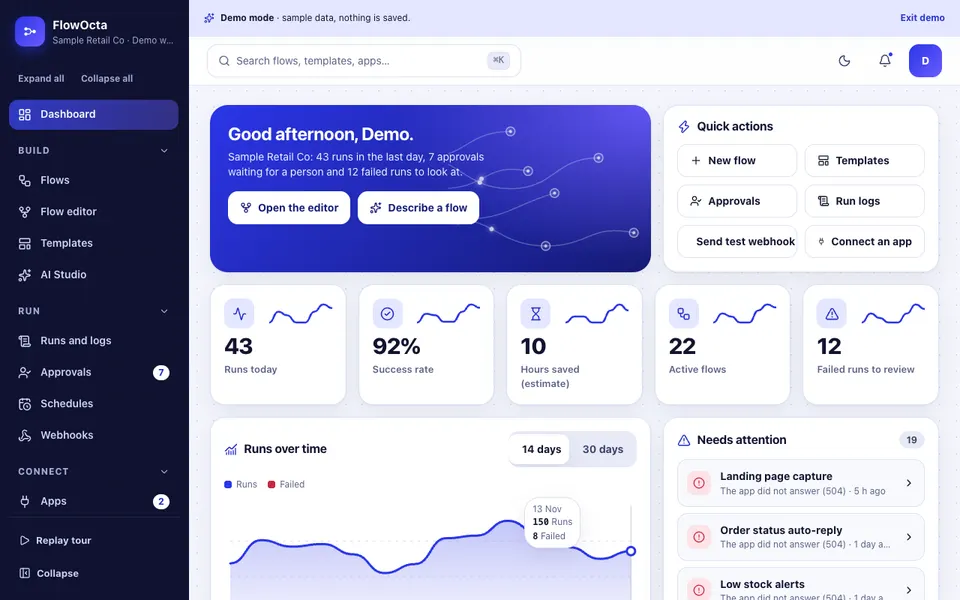
The FlowOcta demo is an interactive no-code automation builder for a fictional company, Sample Retail Co. It uses sample data, nothing is saved, it resets on refresh, and connections and webhooks are simulated. The AI Studio tools use plain rules, not a model. Inside:
- Flow editor: a real canvas where you drag steps from a palette, connect and disconnect ports, pan and zoom, auto-lay out, undo and redo, fill an inspector with a variable picker, see validation badges, and test run with animated pulses and per-step input and output. It includes branching, an Approval pause, a deliberate failure with Retry, and version history.
- Flows and Templates: folders, tags, on and off switches, bulk actions, and templates with thumbnails.
- Runs and logs, Approvals: a step timeline, retry and export of logs, and approvals with timers that resume the paused run.
- Schedules and Webhooks: a cron parser with a plain-words sentence and the next five run times by timezone, and sample web addresses with a payload editor that runs the linked flow.
- Apps, Data tables, Variables and secrets: simulated connections with a fake sign-in, editable customer, order and task tables, and masked secrets.
- Analytics, Usage, Team, Audit log and AI Studio: five analytics tabs, sample usage numbers, roles, an event log, and simulated helpers such as a plain-English flow generator.
How do you try it?
Open the demo and choose Try Demo Account on the login screen. Start in the Flow editor with a template, press Test run and open a step to see its data. Then visit Schedules and type a cron expression, and trigger a Webhook with a sample payload. The AI demos hub has the other examples.
Getting automation built for your business
A custom build begins with your real routines: what starts them, which tools they touch, and who approves. Related reading: why MSMEs invest in custom software, how digital transformation reduces costs, and how an online booking page automates reminders. See our production apps, or describe the routines you want automated and we will send a scoped, fixed-price proposal.
Try it live
Open the real thing: demos run in a new tab with sample data, apps link to their own page.
 Live demoFlowOcta live demoDraw and test flows on a real canvas, pause for approvals, read run logs and try a cron schedule for a fictional retailer.
- ABrowse allAll AI demosTwelve AI app demos and quick demos, all with sample data and simulated AI.
- ZBrowse allZenocta appsProduction apps live on Google Play.
- TBrowse allTalk about a custom buildDescribe the routines you want automated and get a scoped, fixed-price proposal.
Frequently asked questions
01What is no-code workflow automation?
It is building routines by connecting steps on a canvas instead of writing code. A trigger starts a run, steps do the work, conditions choose a path, and approvals pause for a person. Small businesses use it for reminders, follow-ups, reports and data copying.
02What is the difference between a trigger and a step?
A trigger is the event that starts a run, such as a schedule, a new record or an incoming web request. A step is an action performed after that, such as sending a message, updating a row or creating a task.
03When should an automation ask for approval?
Add an approval pause before anything hard to undo or sensitive, such as a firm overdue notice, a refund or a bulk message. The run waits for a named person to approve or reject, then continues or stops.
04What does a cron expression mean?
It is a five-field schedule: minute, hour, day of month, month and day of week. For example, '0 9 * * 1-5' means 9:00 am Monday to Friday. Good tools also show it in plain words and list the next run times.
05Is the FlowOcta demo a real automation tool?
It is an interactive demo with a fictional retailer and sample data. Nothing is saved and it resets on refresh. Connections and webhooks are simulated, and the AI Studio helpers use plain rules rather than a language model.